

A clear resume filename won’t raise your application’s ranking, but it can make your document easier to identify and manage. To decide how to name resume files for applications in 2026, use your first and last name, the role, and a document label, such as “Jordan-Lee-Marketing-Resume.pdf.” Follow the employer’s file-type instructions first, then save the file in the requested format.
It’s easy to focus on the resume itself and overlook the name attached to the file. But a generic label like “Resume1” can become difficult to find, while a tidy, specific name helps distinguish your application from other documents.
This guide explains how to create a simple filename, when to include a position title or job ID, and how to choose between PDF, Word, or another format. You’ll also learn what to avoid and what to review before uploading, so your application is organized and ready to submit.
Key Takeaways
- Skip generic labels, clutter, and unnecessary version details so each application file stays easy to identify.
- Let the employer’s upload instructions decide the filename requirements and file format, and keep your resume and cover letter separate unless told otherwise.
- Save a clean final copy for each application, then review the filename and document content before submitting.
- Choose PDF or Word based on the application’s requirements and how the employer’s system handles files.
1. Avoiding generic names, version labels, and unnecessary details
A practical guide to how to name resume files for applications 2026 starts with one simple rule: make the document identifiable at a glance. “Resume1.pdf” doesn’t show whose file it is, while “Taylor-Morgan-Resume.pdf” names both the applicant and document type. A generic filename can also be hard to distinguish from other drafts stored in the same folder.
Keep revision history out of the version you submit. Labels such as “final,” “final-final,” and “version3” can make it unclear which copy is current. Dates and years may clutter the filename or become outdated. Save dated revisions in a separate archive folder, then use a clear name for the application copy.
For anyone learning how to name resume files for applications 2026, simple characters are a reliable choice. Use letters and numbers, with hyphens or underscores to separate words. Avoid symbols, slashes, and random strings of letters or numbers. They can make a filename harder to read and may cause file-handling complications.
- Use: “Taylor-Morgan-Resume.pdf” or “Taylor_Morgan_Resume.pdf”
- Avoid: “Resume1.pdf,” “Taylor!Morgan/Final.pdf,” and “TM_R7x_final2.pdf”
- Archive: Keep dated drafts and revision notes in a separate folder.
Don’t turn the filename into a second resume header. Include your name, phone number, and email address in the document, but leave contact details and your full address out of the filename. For example, “Taylor-Morgan-Resume.pdf” identifies the file without exposing extra personal information in its label.
Before uploading, read the complete filename and remove clutter. “TaylorMorgan_Resume_2026_Final_v3.pdf” contains a year and version labels that don’t help identify the document. A concise name makes it easier to select the intended file from a folder while keeping the application copy distinct from archived drafts.
2. Following employer filename and file-type instructions
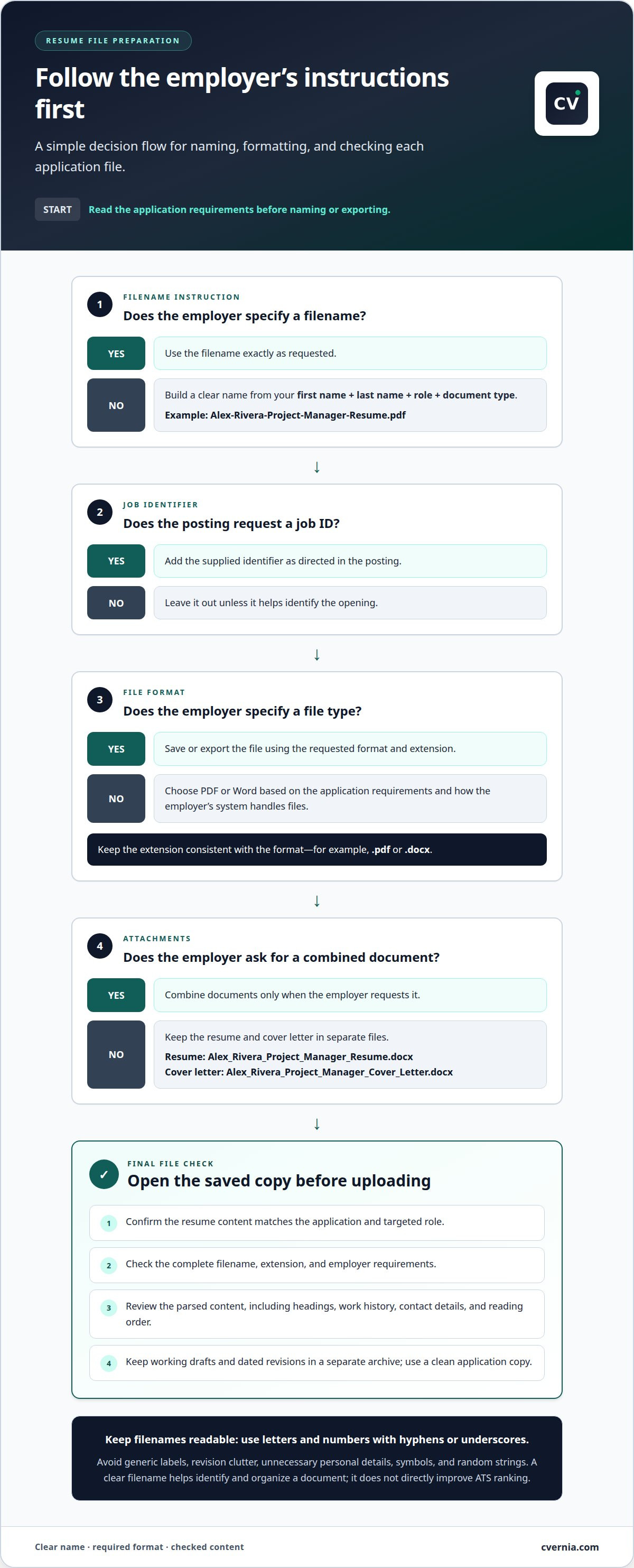
What is the best resume file name format for job applications in 2026? Use your first name, last name, role, and document type, followed by the required extension. For example, “Alex-Rivera-Project-Manager-Resume.pdf” is clear, unless the employer specifies another format.
Read the application instructions before naming or exporting your file. If the posting specifies a filename, file type, or job ID, follow that requirement first. A useful pattern is “First_Last_Role_DocumentType.” Include a listed job ID only when requested or when it helps identify the opening.
Make each document recognizable on its own. Keep your resume and cover letter in separate files unless the employer requests a combined document. For example, “Alex-Rivera-Project-Manager-Resume.pdf” and “Alex-Rivera-Project-Manager-Cover-Letter.pdf” clearly distinguish the attachments. Replace a vague name such as “Resume Alex.pdf” with a more descriptive filename.
A filename helps with organization, not ranking. It doesn’t directly improve your position in an applicant tracking system (ATS); relevant qualifications and resume content matter for matching. Adding job keywords to the filename won’t replace tailoring the resume itself. Keep the filename focused on identifying you and the document type.
Clear labels also make applications easier to sort. When a recruiter is organizing applications for several positions, a role-specific filename helps identify the relevant document. Use simple separators, such as hyphens or underscores, and a standard file extension to keep the name readable and easy to handle.
- Resume: “Alex_Rivera_Project_Manager_Resume.docx”
- Cover letter: “Alex_Rivera_Project_Manager_Cover_Letter.docx”
- Job ID requested: Add the supplied identifier as directed in the posting.
Before uploading, compare the saved filename and extension with the employer’s instructions. This final check helps prevent a clearly named document from being submitted in the wrong format.
3. Renaming and saving a final resume file
Make your submitted copy easy to identify in a recruiter’s folder and an application portal. Start with your first and last name, then add the role and document type. For example, “Morgan-Chen-Data-Analyst-Resume.pdf” identifies the applicant and the targeted position. Include the role when it helps distinguish this version.
Keep the saved name practical. Spaces may appear as “%20” in some ATS portals, which can affect direct links. Use hyphens or underscores between words instead. Mac and Windows filenames have a character limit of around 255 characters, so a short name is easier to handle than a long string of job details.
Use this workflow to prepare the final file:
- Open the resume intended for the role, then confirm its content matches that application.
- Choose a clear name with your first name, last name, role, and “Resume.”
- Save or export the document using the extension requested in the posting.
- Open the saved copy and review its filename and parsed content before uploading.
Check the resume content as well as its filename. An application system may extract text for review, so confirm that the parsed version preserves the information and reading order. Review headings, work history, and contact details, not just the first page. Even a correctly named file can cause confusion if its text appears incomplete or out of sequence after parsing.
Keep the final application copy distinct from working drafts. For each role family, retain a source file, a tailored export, and a copy of what you submitted. Label the submitted version with the role so you can tell which file went to which opening. A name such as “Morgan-Chen-Data-Analyst-Resume.pdf” also distinguishes it from unrelated attachments.
Before uploading, compare the filename, extension, and document content with the application requirements. A final review can catch a mismatched role label, an outdated draft, or an export issue before you submit.
4. Choosing between PDF, Word, and other formats
Follow the application’s file-type instructions first. If the posting requests DOCX, submit a Word document; if it accepts PDF, use a PDF when it fits the instructions. The requested format takes priority over a general preference. Make sure the filename extension matches the file you upload, such as “Avery-Kim-Analyst-Resume.docx.”
PDF can preserve a resume’s layout across devices. Export the file from Word or Google Docs to retain its text and formatting. Avoid creating a resume PDF with image-editing software: the result may not be readable by applicant tracking systems, even if it looks polished when opened.
For an older ATS platform, DOCX is a practical option. PDF may work well when the job posting explicitly accepts it or when you’re emailing a recruiter directly. The formats aren’t interchangeable in every application, so follow the employer’s instructions. Don’t upload a PDF just because it looks consistent if the portal requests Word.
Less common formats can cause access problems. A recruiter may be unable to open a resume saved as .txt, .odt, or .odf. Convert the file to a format requested by the employer before sending it. Then open the exported document and review its text, layout, and filename. For example, check that “Avery-Kim-Analyst-Resume.pdf” opens correctly and contains the intended resume.
Use this quick decision path:
- Posting requests DOCX: Upload the Word version.
- Posting accepts PDF: Export a text-based PDF from Word or Google Docs.
- Emailing a recruiter directly: PDF is an option.
- Resume is .txt, .odt, or .odf: Convert it before sending.
Before submitting, compare the file extension with the posting and open the final document. This simple check can catch a format mismatch before you send your application.
CVernia
CVernia helps you manage resume versions and application details alongside the rest of your job search. Use its career management platform to organize application activity, and track submitted applications through the application dashboard.
When tailoring a resume for a role, CVernia’s CV Compatibility & ATS Analysis helps you assess how its content aligns with the job description. This complements a clear filename: the name identifies the document, while its content communicates your qualifications. Interview Preparation & Guidance can support you as you prepare for the next stage.
Use CVernia when keeping targeted resume versions and application progress organized becomes difficult. Start by bringing your application materials and tracking into one place with CVernia.
Make Your Next Application More Intentional
Treat each application as a connected set of decisions, not a collection of files. The way you name resume files for applications in 2026 can support a repeatable routine, but the document itself should also reflect the role you want. Build a process that keeps your materials aligned with your goals and makes it easier to carry useful improvements into your next application.
CVernia supports your job search with tailored CV and cover letter creation, CV Compatibility & ATS Analysis, and a career management platform. These tools bring document preparation and application management together as you refine your approach. Use the support that fits your next step, whether you’re preparing application materials or organizing your search.
Ready to move forward with greater clarity? Contact CVernia for resume help, and take your next application one step closer to ready.
Frequently Asked Questions
What information should be included in a resume file name?
Include enough detail to identify yourself and distinguish the document, usually your name and “Resume.” Add the role when you’re saving several tailored versions, such as “Jamie-Patel-Product-Designer-Resume.pdf.” Keep personal contact details inside the resume, not in the filename. A descriptive name helps you select the intended attachment without adding your phone number or email address to its label.
Should applicants include their name, job title, or company name in a resume file name?
Include your name and add the job title when it helps distinguish the version. A company name is optional unless the employer’s instructions request it. A role-based label can help you tell apart versions prepared for different openings, but avoid adding a company name just to make the filename longer. Keep the name focused on the applicant and the document’s purpose.
How should you format spaces, hyphens, and underscores in a resume file name?
Use one clear separator consistently, such as hyphens in “Jamie-Patel-Resume.pdf” or underscores in “Jamie_Patel_Resume.pdf.” Both make word boundaries easy to scan. Spaces are readable, but some application systems may encode them as “%20,” which can affect direct links. If you’re unsure, choose hyphens or underscores and avoid mixing separators within one filename.
What characters and symbols should you avoid in resume file names?
Avoid slashes, symbols, punctuation, and random character strings. For example, “Jamie/Patel!Resume.pdf” is less straightforward than a name with simple separators. Stick to letters, numbers, hyphens, or underscores, and retain the standard extension for the chosen file type. This keeps the label readable and reduces avoidable complications when attaching or handling the document.
Are there resume file name length limits in applicant tracking systems?
There isn’t one filename limit to assume for every application system. Mac and Windows filenames have a limit of around 255 characters, but a portal may handle filenames differently. Keep your label brief rather than approaching that limit. A name and a short role descriptor usually provide enough context; long strings of notes, revisions, and extra details make the file harder to scan.
Do employers or job application portals have specific resume file naming requirements?
Yes. An employer may specify a filename or format in the job posting or upload portal. Follow those directions instead of your usual naming preference, including any requested job ID or document label. If the portal gives a specific pattern, use it as written rather than adding extra information. Review the upload fields before submitting to ensure the file matches the requested document type.


