

What if the job link you saved is the first thing you lose? A bookmark points to a posting, but it doesn’t preserve it. Once an employer or job board removes the listing, the link may stop opening, while a screenshot or copied snippet can leave out key qualifications, responsibilities, or application details. Saving job descriptions before they are removed helps you keep the information you need to prepare with confidence.
Save a promising role as soon as you find it. Capture the full description and its source details so you can refer back to the employer’s requirements even after the listing disappears.
This guide gives you a repeatable way to preserve, name, and organise job postings, then connect each one to the right CV, cover letter, notes, and application progress. You’ll also learn when screenshots can help as a backup and how job-capture tools fit into the process. CVernia Job Capture works through a Chrome extension for LinkedIn and Indeed postings, connecting captured jobs with application management.
Key Takeaways
- Build a complete record with the role, employer, source, date saved, and any listed deadline, then preserve the full posting text.
- Use a capture-and-verify routine so you don’t miss key responsibilities, qualifications, location, or application instructions.
- Make saving job descriptions before they are removed part of your application routine, and label each record so it’s easy to find again.
- Keep the original posting separate from your CV versions, personal notes, and interview reflections to maintain a clear application history.
- Choose a capture method that fits your search: links retain source context, while readable saved copies preserve details. CVernia Job Capture supports LinkedIn and Indeed through a Chrome extension.
Why saving a job description matters after a posting disappears
You find a role that fits, bookmark the page, and plan to return when you have time to tailor your application. Later, the link opens to a page that’s changed, closed, or gone. A saved URL points to the source, but it can’t guarantee that the original wording and details will still be there.
A useful saved record is more than a link. It includes readable posting text and enough context to identify the role later, such as the employer, job title, and source. The Wikipedia article on Job Description outlines how descriptions communicate a role’s responsibilities and requirements. Those details give you a reference for understanding what the employer was seeking.
A bookmark points to a page; a saved job description preserves readable contents and the context you need to use them. Keep the source link when possible, but don’t rely on it as your only record.
Why job postings can change or disappear
Employers and job boards may update, close, or remove a listing. A revised page might use different wording from the version you first saw, while a closed or removed page may no longer show the details at all. Bookmarks preserve the address, not a copy of the page, so they can’t protect you from those changes.
That matters even if you’ve already applied. The original posting can help you recall which role you responded to and what information was available when you prepared your materials. Treat the URL as source context, not as an archive.
What a missing listing can mean for your application
Without the full text, you may not remember which qualifications were essential, which responsibilities were emphasized, or what the application instructions asked you to provide. A brief screenshot or copied excerpt might miss a requirement that helps you explain your fit in a follow-up or interview.
For example, a role may emphasize coordinating work across teams as well as a specific technical skill. If you remember only the skill, you may be less prepared to connect your relevant experience to the broader responsibilities.
A complete record supports focused preparation at each stage. Use the stated requirements to identify genuine examples from your experience, then tailor your CV and interview responses around those examples. Don’t simply paste the employer’s wording into your application. Understand the role and describe your qualifications accurately, showing how your experience relates to the work.
What to capture before a job description is removed
A useful capture should help you identify the opportunity, review the employer’s requirements, and understand how to apply. Save the complete text where possible, not just the details that stand out at first glance. Keep the original source link as context, but treat your saved copy as the record you’ll refer to later.
The essential details for a useful job-posting record
Start with the identifiers and capture context shown on the page. These make the posting easier to match with the right application later. Then preserve the full description, including sections that may seem routine but clarify the employer’s expectations.
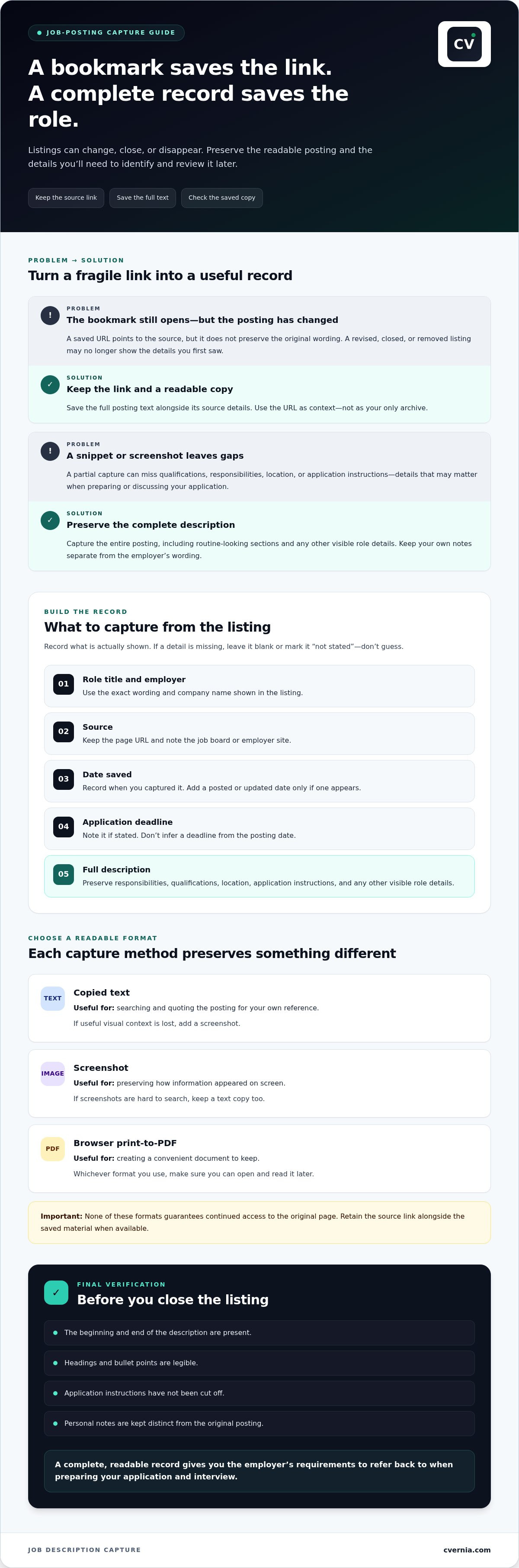
- Role title and employer: Record the exact wording and company name shown in the listing.
- Source: Save the page URL and note the job board or employer site.
- Date saved: Record when you captured the listing. Add a posted or updated date only if one appears.
- Deadline: Note the application deadline if stated. Don’t infer one from the posting date.
- Full description: Preserve responsibilities, qualifications, location, and application instructions, along with any other visible role details.
Capture what’s actually there. If the listing doesn’t show a deadline, salary, or another detail, leave it blank or note “not stated” rather than guessing. For broader occupation context, the Bureau of Labor Statistics Occupational Outlook Handbook offers descriptions of hundreds of occupations, but it doesn’t replace the specific employer’s posting.
Choosing between copied text, screenshots, and a saved file
Copied text is easy to search and quote for your own reference, while screenshots preserve how information appeared on screen. A browser’s print-to-PDF option can create a convenient document, but none of these methods guarantees continued access to the original page. Choose a format you can open and read later.
Before closing the listing, review your capture. Check that the beginning and end of the description are present, headings and bullet points are legible, and application instructions haven’t been cut off. If copied text loses useful visual context, add a screenshot. If screenshots are hard to search, keep a text copy too. Retain the original link alongside the saved material when available.
Make the record practical for your next step. You might note which CV version you plan to tailor or add questions to revisit, but keep personal notes distinct from the employer’s original wording. CVernia’s job-posting tools connect postings with application notes and progress. Saving job descriptions before they are removed works best when each record is complete, readable, and clearly tied to its source.
How to save a job description before it is removed: a repeatable workflow
Use the same sequence each time: capture the listing, preserve its details, label the record, and verify the saved copy. This makes saving job descriptions before they are removed a quick part of reviewing a promising role, rather than a task you have to reconstruct later.
A minimum useful record contains the full job description, employer, role title, and source. Add the date you saved it and any visible deadline to make the record easier to identify and act on.
- Capture the complete page. Open the full listing and review it from top to bottom before navigating away. Include responsibilities, qualifications, location, application instructions, and other visible details. If the posting expands sections or separates information across tabs, capture each relevant part.
- Preserve the details. Copy the text into a document or save it in a readable local file. Include the source URL and note the employer, exact role title, and date saved alongside the description. A link can help you return to the original source, but keep the captured content as your reference.
- Label the record clearly. Use a consistent name, such as “Employer - Role Title - Date Saved.” If you’re applying to several similar roles, add a location or team name when it appears in the listing. Clear labels help distinguish versions without opening every file.
- Verify before you move on. Reopen the saved document and confirm that the responsibilities and qualifications are present, the text is readable, and no application instructions were cut off. Compare it with the live page while it’s still available, and correct gaps immediately.
A quick manual capture process
Manual capture works across job boards and employer career pages. Copy the complete text into a document, or use your browser’s print-to-PDF option if it produces a readable file. Keep the source link with the copy, then check that headings, lists, and the end of the posting came through. If a section won’t copy cleanly, capture it separately and add it to the same record.
Using CVernia Job Capture for supported postings
CVernia Job Capture works through a Chrome extension and supports LinkedIn and Indeed only. Job-posting storage connects a captured role with CVernia’s application-management workflow, where notes, attachments, and application tracking help keep related materials together. Saving jobs is free and doesn’t count against the Free plan’s allowance of one complete application every rolling 30 days.
For a source outside LinkedIn and Indeed, use the manual process instead. Whichever method you choose, keep the same essential details and verify the saved record before closing the page. A consistent routine gives you a dependable reference for tailoring application documents and preparing for later steps.
How to organise saved job descriptions for applications and interviews
A saved posting is most useful when you can quickly match it to the right application and see what happened next. Choose a filing approach that suits your search: group records by employer if you’re comparing roles at the same company, or by role if you’re tracking similar opportunities across employers. A folder, spreadsheet, or application dashboard can work. The key is using a consistent label that helps you retrieve the record.
Keep the employer’s original description separate from your own materials. Store the posting as a reference, then attach or link your tailored CV and cover letter, application notes, and interview reflections as distinct items. This makes it easier to check what the employer asked for without confusing its wording with your own experience or claims.
Turn the saved description into an application reference
Review the requirements and responsibilities, then identify relevant skills and examples from your genuine experience. Use those points to tailor your CV and draft a personalised cover letter that explains your fit in your own words. Don’t present a listed qualification as your own unless you have it, and don’t copy whole sections of the posting into your application. The description guides your focus; your evidence should come from you.
For interview preparation, add brief notes beside the saved posting: examples you might discuss, questions about the role, or details you want to clarify. Keep these reflections distinct from the original text so you can tell at a glance what the employer said and what you’ve added. An organised job interview tracker can help connect that preparation to the role and interview stage.
Keep the posting connected to application progress
Link the saved description to a record that shows where you are in the process. Use clear stages such as Draft, Applied, Interview, Offer, Rejected, and Withdrawn, updating the status as it changes. Add relevant notes and attachments, such as the CV version submitted, a confirmation message, or interview reflections, so the posting stays connected to the decisions and materials for that opportunity.
This prevents a common mix-up: finding a description but not knowing whether you applied, which version you sent, or what you need to follow up on. For broader ideas on connecting records and managing application progress, explore this job search management system guide.
Saving job descriptions before they are removed is only the first step; organised records turn them into useful references throughout your search. CVernia brings job-posting storage, notes, attachments, and application tracking into one application-management workflow. CVernia keeps saved postings connected to your application progress.
Choose a job-description saving method that fits your search
The right method is one you’ll use consistently and can access when preparing an application. A bookmark is quick, but it keeps only the address. A saved copy retains readable details. For a dependable record, keep the source link alongside the description rather than treating either one as a substitute for the other.
- Bookmarks: Useful for returning to a live listing or its source page. They don’t preserve the job description if the page changes or disappears.
- Screenshots: Preserve visible wording and layout, but can be difficult to search and may miss content below the captured screen.
- Copied text: Easy to search and reuse as a reference. Check that headings, lists, and instructions transfer clearly.
- Local files: Documents or PDFs can keep a readable copy together with role details. You’ll need a consistent naming and filing habit to find them later.
- Supported job-capture tools: Can connect captured postings with application-management features. Check which source sites the tool supports.
Manual capture versus integrated job capture
Manual copying and screenshots are flexible: you can use them on different sites and choose where to store each record. The trade-off is that you’re responsible for checking completeness, naming files, and connecting each copy to the right application.
CVernia Job Capture supports LinkedIn and Indeed through a Chrome extension. It provides a capture option for those supported postings within an application-management workflow; it doesn’t capture postings from other sites. For a listing elsewhere, manual copying or a screenshot remains a practical fallback. Keep the same source and role details with either method so your records stay identifiable.
When an application-management platform can help
If you’re tracking several opportunities, keeping postings, notes, attachments, and application progress together can make it easier to find the right materials at each stage. Use the saved requirements to focus your CV and cover letter on relevant experience you can support with real examples. A guide to ATS resume checkers can also help you consider role alignment while preparing your CV.
CVernia’s Free plan includes job-posting storage, notes, attachments, and application tracking. Saving jobs is free and doesn’t count against the plan’s allowance of one complete application every rolling 30 days. CVernia Job Capture connects supported LinkedIn and Indeed postings with application management. Whichever method you choose, save a readable copy and retain the link as source context.
Make your next application easier to prepare
Choose one small habit to carry into your next search: save the role details as soon as a posting interests you, then connect that record to the application work that follows. Saving job descriptions before they are removed becomes more useful when your process helps you move from reviewing a role to preparing a focused, truthful application.
CVernia Job Capture supports LinkedIn and Indeed through a Chrome extension. Saved postings can sit alongside notes, attachments, application tracking, and preparation tools. Saving jobs is free and doesn’t count against the Free plan’s application allowance.
Explore CVernia to organise your job search and connect saved roles with the steps you take next. A clear record gives you a practical starting point for preparing each application.
Frequently Asked Questions
Is a bookmark enough to save a job description?
No. A bookmark stores the page address, not a fixed copy of its contents, so it may not show the same description later. Keep it as a way to return to the employer’s page, but also save a readable version for reference. When saving job descriptions before they are removed, include enough identifying detail to distinguish the posting from similar roles at the same company.
Can I save a job posting as a PDF?
Yes. A browser’s print-to-PDF function can create a local file you can open later, even if the live page changes. Before relying on it, open the PDF and check that the full description, headings, and application instructions are readable. Some pages divide information into expandable sections, so review the posting first and capture any sections that don’t appear in the document.
What happens if a job description changes after I save it?
Your saved copy remains a reference to the version you captured, while the employer’s live page may show revised information. Keep the capture date in the filename or record so you can tell which version you used. If you notice a material update before applying, save a separate copy rather than overwriting the earlier one. That makes it easier to compare the requirements you initially reviewed with the current listing.
Can CVernia Job Capture save postings from any job site?
No. CVernia Job Capture supports LinkedIn and Indeed only, through a Chrome extension. If you find a role on an employer’s career page or another site, preserve it manually by copying the text into a document or saving a readable file. Include the source address with that record so you can identify where the posting came from, even if the page is no longer available.
Do saved job descriptions count toward CVernia’s Free plan application limit?
No. Saving jobs is free and doesn’t count toward the Free plan’s allowance of one complete application every rolling 30 days. You can keep opportunities for later review without using that application allowance. The limit applies to complete applications, so distinguish saving or organising a posting from preparing and completing an application when planning how to use the Free plan.
Should I keep the original job description separate from my CV and cover letter?
Yes. Keep the employer’s text as a source document and store your CV and cover letter as separate files. This helps you avoid confusing the employer’s requirements with your own qualifications or accidentally carrying wording into an application without adapting it. Use clear labels to connect the files, such as the employer and role name, while preserving each document’s purpose and version.
How can I find a saved job description when I have applied to many roles?
Use a consistent filename or record title that combines the employer and role, then add a date or location when similar listings could be confused. Searchable text makes it easier to find a specific requirement or keyword than an image-only capture. You can also connect the description to the application record and its current stage, so a search for an employer or role leads you to the related materials.


